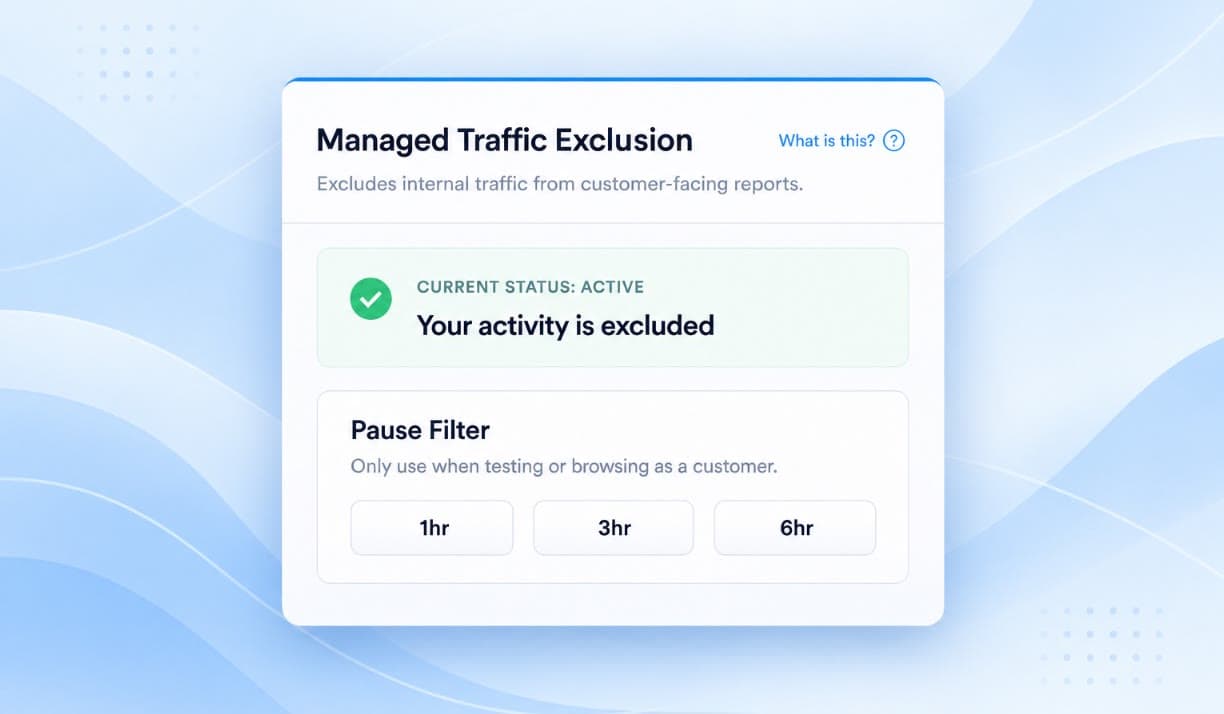
Most of the effort that goes into analytics accuracy is spent on tagging and attribution. Part of the noise, and the part that's easiest to remove, is staff visiting their own site. The old fix for that stopped working when everyone went hybrid.
A developer tests a form. A marketer checks a landing page five times in the hour before a launch. A salesperson refreshes the pricing page while on a call. Each of those is a session in analytics, a few of them are leads in the CRM, and none of them are customers. Large organisations spend real money on analytics accuracy, and the biggest source of noise is often their own staff.
The traditional answer was an IP filter. Exclude the office ranges and the problem goes away. That worked while people were in the office. With hybrid and remote work, employees arrive from home broadband, cafés, mobile networks and VPN exit nodes shared with the public, and the list of addresses to exclude is never current. For an organisation with a hybrid workforce, I don't think IP filtering is worth maintaining any more.
What you're getting
What follows is a small open-source Chrome and Edge extension called Managed Traffic Exclusion, released under the MIT licence. On the company's listed domains it sets one JavaScript flag on the page before any tracking script runs, and Google Tag Manager reads that flag and skips the tracking tags for that browser. Customers never have the flag, so nothing changes for them.
| What it does | Sets one flag, window.isManagedInternalTraffic, on your domains before any tracking script loads. Tag Manager reads it and skips the tracking tags. |
| What customers see | Nothing changes. They never have the flag. |
| What staff can do | Pause it for one, three or six hours from a popup. It switches itself back on. |
| What it collects | Nothing. It sends nothing anywhere and stores only a local timer for the pause. |
| Time to first test | An afternoon, with the first test on your own machine before anyone else is involved. |
The browser is already managed
Most enterprises on Google Workspace or Microsoft 365 already manage the browser centrally, through the Google Admin console, Microsoft Intune or Group Policy. Those tools can force-install an extension into every managed Chrome or Edge instance.
The organisation already has the one thing an IP filter never had: a reliable way to identify the person, independent of where they're connecting from.
The extension itself is small. It identifies the browser as an employee's before any analytics script loads, and it does nothing else. It collects no data, sends nothing anywhere, and can be paused by the employee for one, three or six hours when someone needs to see the site as a customer would. It switches itself back on; there is no permanent opt-out. Deployment happens once, centrally. Add or update the extension in the admin console and every managed browser picks it up on its next policy refresh, with no local installs and no version drift.
What you need
| Requirement | Why it matters |
|---|---|
| A managed browser estate | Chrome or Edge, with force-install available through Google Admin, Microsoft Intune or Group Policy. This is what makes the rollout central. |
| Edit access to the Tag Manager container | The exception rule lives here. Without it the flag is set but nothing reads it. |
| A Chrome Web Store developer account | Under the company, for a private listing that only your managed browsers can install. |
| The list of domains to cover | Goes into the manifest and the popup. Anything not listed is left alone. |
The whole thing depends on timing
The reliability of the system comes down to timing. The content script is declared to run at document_start:
"run_at": "document_start"
That makes it the first code to execute as the browser begins parsing the page, ahead of the Tag Manager snippet in the page's own head. At that point it sets one global:
window.isManagedInternalTraffic = true;
Two details matter here and both are easy to get wrong.
Detail one: the right world
Content scripts normally run in an isolated world, so a variable set in the extension's own context is invisible to the page. The flag has to be set in the page's world. Injecting an inline script element gets it there, but the site's Content Security Policy applies to that script, and enterprise sites tend to have strict policies. So the content script that sets the flag is declared with "world": "MAIN", which runs it in the page's context directly and sidesteps the CSP question.
Detail two: no DOM yet
At document_start the head element may not exist yet, so anything that relies on document.head will fail intermittently. The flag is set on window, which always exists, and nothing needs appending to the DOM for it to work.
Once set, the global stays set for the life of the document, and the content script runs again on every full navigation. The main-world assignment is what does the work. The repository also injects an inline marker script and keeps it first in the head as a belt-and-braces measure; I treat that as optional, and if you strip it out the flag still lands before Tag Manager.
Getting it running
Steps one to three take under an hour and affect nobody but you. Step four's store review usually takes a few days. The README's Installation section has the long version of each.
- Get the code. Clone or download the repository.
- Set the domains. In
manifest.json, replace the domain patterns inhost_permissionsand in bothcontent_scriptsmatch lists, then make the same change to theallowedHostslist near the top ofpopup.js. The pattern looks like*://*.example.com/*. - Test it on your own machine first. Open
chrome://extensions, turn on Developer mode, click Load unpacked and choose the folder. Visit one of your domains and run the console check from the testing section below. - Publish it privately. Zip the extension files, upload to the Chrome Web Store from the company developer account, set visibility to Private and submit. The README lists which files go in the zip and gives ready-made text for the privacy section.
- Force-install it. Add the extension's Web Store ID in Google Admin (Devices › Chrome › Apps & extensions), Microsoft Intune (Settings catalog, force-installed extensions) or Group Policy. Every managed browser installs it on its next policy refresh.
- Add the Tag Manager rule, below. Until this is done the flag is set but nothing reads it.
The Tag Manager rule
Three objects in the container, and this is where readers get it wrong, so I'll spell them out. The README's Google Tag Manager Setup section covers the same ground.
| Object | Type | Settings | Name it |
|---|---|---|---|
| Variable | JavaScript Variable | Global variable name isManagedInternalTraffic, with no window. prefix. |
Managed Internal Traffic |
| Trigger | Custom Event | Event name .* with Use regex matching ticked, so it matches every event the container sees. Fire on Some Custom Events where Managed Internal Traffic equals true. |
Internal Traffic Exclusion |
| Exception | Added to each tag | Open every tag that sends data, meaning analytics, ad pixels and CRM scripts, and add Internal Traffic Exclusion under Triggering as an Exception. |
The trap is the trigger type
An exception only blocks a tag when the exception trigger fires on the same event as the tag, so a Page View exception does nothing for tags fired by clicks, form submissions, scroll depth or custom events. That is why the trigger has to be a Custom Event matching all events and not a Page View trigger.
| Extension state | Variable value | What happens |
|---|---|---|
| Installed and active | true |
Excepted tags are suppressed. The container itself still loads. |
| Paused or not installed | undefined |
The exception never matches and tracking runs exactly as it does for a customer. |
The check is a synchronous property read, which is as close to free as anything in the browser gets, so there's no performance argument against it.
What staff see
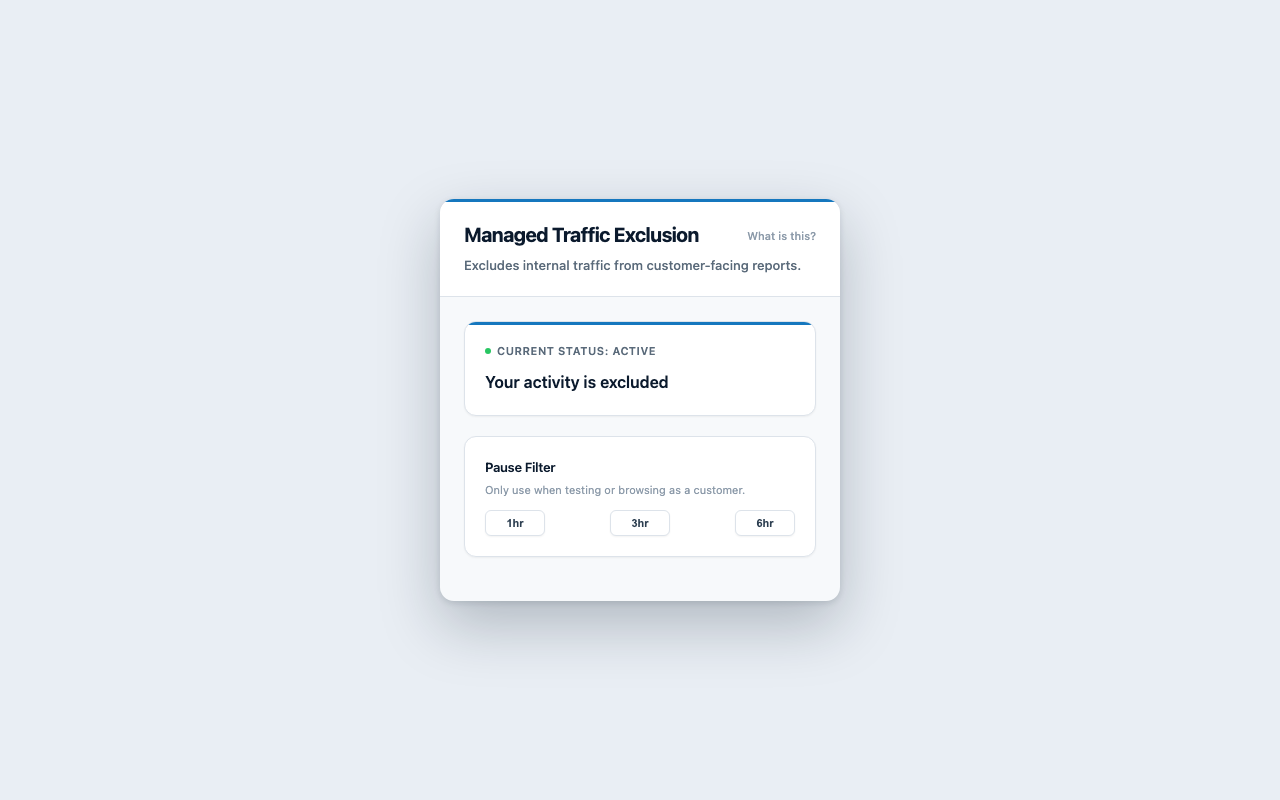
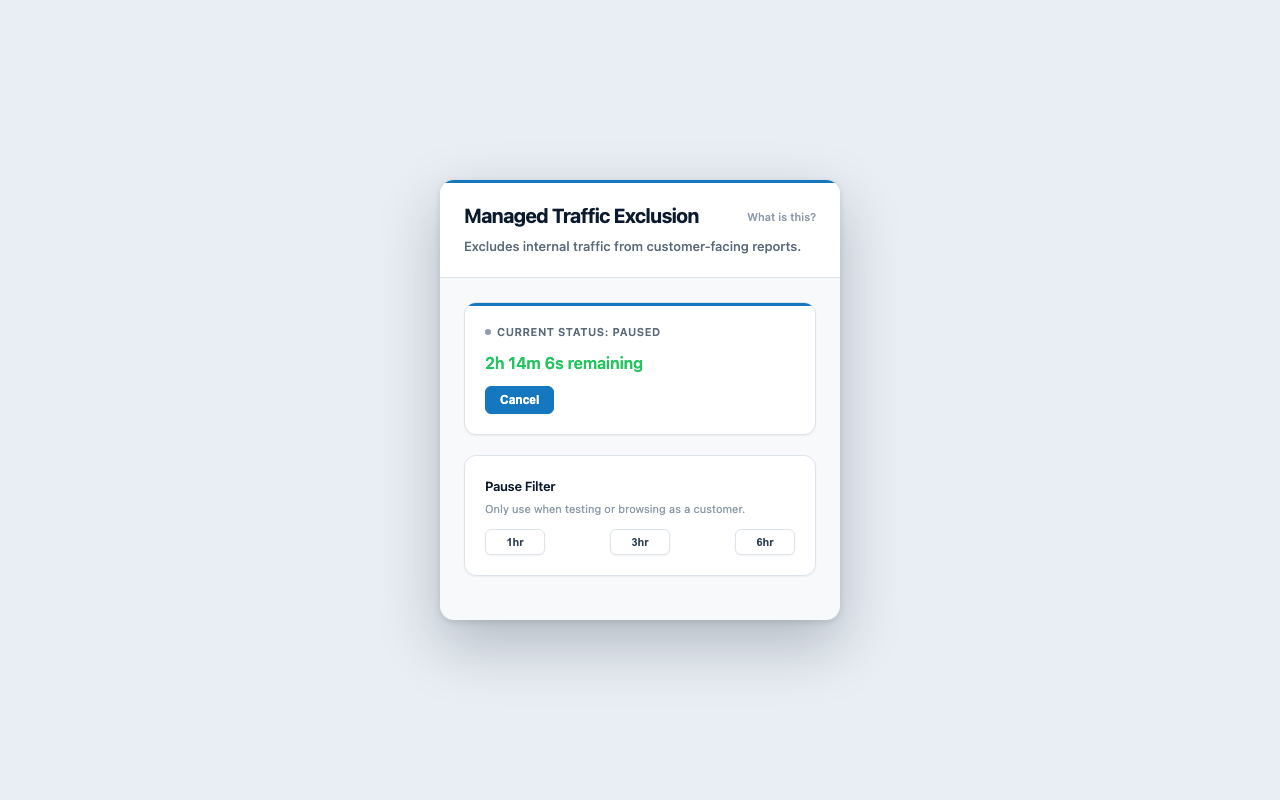
A small popup with the current state and three pause buttons. While paused it shows a countdown and a Cancel button, and on a site that isn't covered it says No action needed.
How to know it's working
Three checks, from quickest to most convincing. The README's Testing section runs to eight steps and a troubleshooting list if you need more.
| Check | Takes | What you're looking for |
|---|---|---|
| Console | 30 seconds | On a covered site, window.isManagedInternalTraffic returns true. Pause from the popup and it returns undefined. Cancel, and it's true again. On a site that isn't covered, the popup says No action needed. |
| Tag Manager Preview | 5 minutes | Connect Preview to a covered site, pick a page view and open the Variables tab. Managed Internal Traffic is true and the excepted tags show as not fired. Pause, reload and repeat: the variable is undefined and the tags fire. |
| Before and after in analytics | 1 to 2 weeks | Pick a segment you know is internal, for example the office IP range or sessions that visit a staff-only URL, and compare the week before rollout with the week after. Expect a visible drop in that segment and a small rise in site-wide conversion rate, because the denominator shrank. |
For the console check, open DevTools on a covered site, select the top context in the Console, and run:
window.isManagedInternalTraffic
The before-and-after is what a stakeholder will ask for. If neither number moves, the Tag Manager exception is probably on the wrong event type.
The two most common problems
A page that was already open before the extension was reloaded, which needs a refresh. And a domain added to the manifest but not to the list in popup.js, which makes the popup say No action needed on a site where the flag is working.
What it doesn't cover
It covers managed browsers and nothing else, so the extension reduces internal noise rather than eliminating it, and the gap is worth measuring before anyone declares the data clean.
| Gap | What still gets through | The fix |
|---|---|---|
| Unmanaged devices | Staff on personal devices, on a phone, or in an unmanaged Safari or Firefox. | A staff-only URL parameter feeding the same Tag Manager exception catches most testing from personal devices. |
| Server-side submissions | A test form submission still reaches the CRM if the form posts to a server. | The site's own form handler reads the same flag and tags the submission as internal. A small change once the flag exists. |
| Staff-only areas | Internal tools and logged-in areas visited from any browser. | A data layer value set on authenticated sessions feeds the same exception. |
Neither of the extra rules is as clean as the managed-browser flag, but together they cover the remainder, and the before-and-after comparison above tells you how much remainder there is.
The pause also has to be easy. If staff can't quickly see the site as a customer sees it, they'll start using personal browsers and the data gets worse than before. The one-click timed pause exists for that reason.
On privacy, the position is simple to defend. The extension holds no personal data, transmits nothing and stores nothing beyond a local timer for the pause. Its only effect is to stop data being collected. It's a short conversation with a data protection officer.
If the browsers are already managed, the infrastructure for this exists. The remaining work is a small extension and one exception trigger.